This guide is intended for Duggal Visual Solutions general users specifically. Information herein may contain customizations and particulars specific to the Duggal aACE system. Click this link for the General aACE Software aACE 5 Knowledge Base.
Get Rates and the Shipping Cost Field
Shipment Status and Tracking Status
Accessing the Transmitted NRG record
aACE Fields and Corresponding NRG Fields
See the FedEx and UPS Integration article for more information on navigating the NRG window.
NRG
NRG is a Multi-Carrier Shipping software built in FileMaker for UPS, FedEx, USPS and LTL Freight. NRG allows automation of shipping and rate retrieval to the user at the time of order. NRG also provides visibility to shipment statuses within the aACE and other FileMaker based systems.
Get Rates and the Shipping Cost Field
The user can select a UPS or FedEx Courier Service and Save the Shipment in a Pending State without Transmitting to NRG. By doing this, a Get Rates icon appears next to the Shipping Cost field. Clicking this icon will populate the Shipping Cost field with the rate appropriate to the Courier Service, Package Type, Dimensions (in) and Weight (lbs) fields.

The Get Rates icon  only works for NRG-related shipping (FedEx and UPS).
But, the cost field can be manually populated for all Courier types. Quoted Freight shipments can be recorded in this way. If the Pricing logic for a courier service is based off cost, this field will NEED to be populated for accurate pricing to be relayed to the Order.
The Get Rate Icon is presently broken and non-functional.

Permissions to Transmit to NRG
User Group permission must be granted in the Shipping Log module for a user to be able to transmit a shipment to NRG. This is performed in the System Admin> User Groups module.
Transmit a Single Shipment to NRG
NRG is activated for an aACE Shipment when a UPS or FedEx Courier Service is selected and the Shipment is "Transmitted" to NRG. Transmitting a Shipment to NRG will generate a shipping record in NRG to be sent to the UPS and FedEx systems by the Shipping Department. Labels are also generated from NRG.
When ready to print a label and ship a Shipment, go to the Actions menu and select Transmit Shipment. Only Users with permissions to transmit shipments will be able to perform this Action.
Once the Transmit Shipment action is selected, the NRG window will appear and if all fields are validated and NRG deems the information sufficient to create a label, the NRG record will be marked "shipped", a label will be generated, and tracking # assigned.
The aACE Shipment record will receive the Status of Transmitted.

If all fields are NOT validated and NRG discovers a problem, the NRG record can be accessed by clicking the new NRG logo in the Transmitted aACE Record.

Once the NRG record is corrected, clicking the Ship button will generate the label and assign a tracking number.

The NRG Ship Button will lock in the Cost and Tracking Number for the Shipment.
Validations occur in NRG to ensure necessary information is populated.
When all fields are valid and the Ship button is selected, the Status for the NRG record becomes “Shipped”, and tracking and cost information is visible in the yellow highlighted area.

aACE will reflect these new values after the “Update Shipments from Integrated Shipping” process runs. While testing the dev system, this can be run by clicking the Run link and selecting Local in the pop-up window.
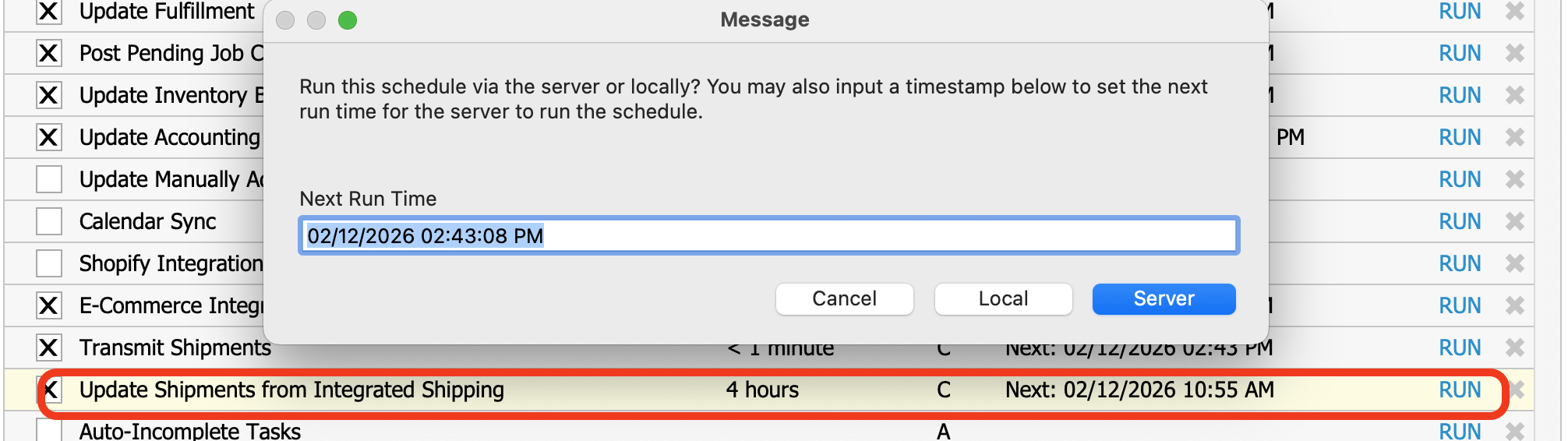
Once the Schedule runs, the aACE Shipment will display the Tracking # and Ship Cost. The Invoice field is also populated based on preset calculations on the Cost field.
The user may pull this information ahead of the periodic update by selecting Update Transmitted Shipment in the Action menu.

It is important to get all fields properly populated before sending to NRG.
Once Transmitted, if characteristics of the Shipment have changed, the NRG record may be edited, but edits in NRG will NOT transfer back to aACE.
Transmit a List of Shipments to NRG
A list of Shipments can be Transmitted to NRG from the List View Action Transmit Shipments in List.

Upon Transmitting, the Shipments are added to a queue that is processed via an Automation Schedule set up in aACE System Admin > Preferences > Automation Schedules.
Transmitting a list of Shipments to NRG will not generate labels. To do that the user must enter the NRG window and select the Shipping List button.

In the Shipping List view, the filters can be used to segregate the desired list of labels. Selecting the Batch Ship button will generate labels for the list.

Shipment Status and Tracking Status
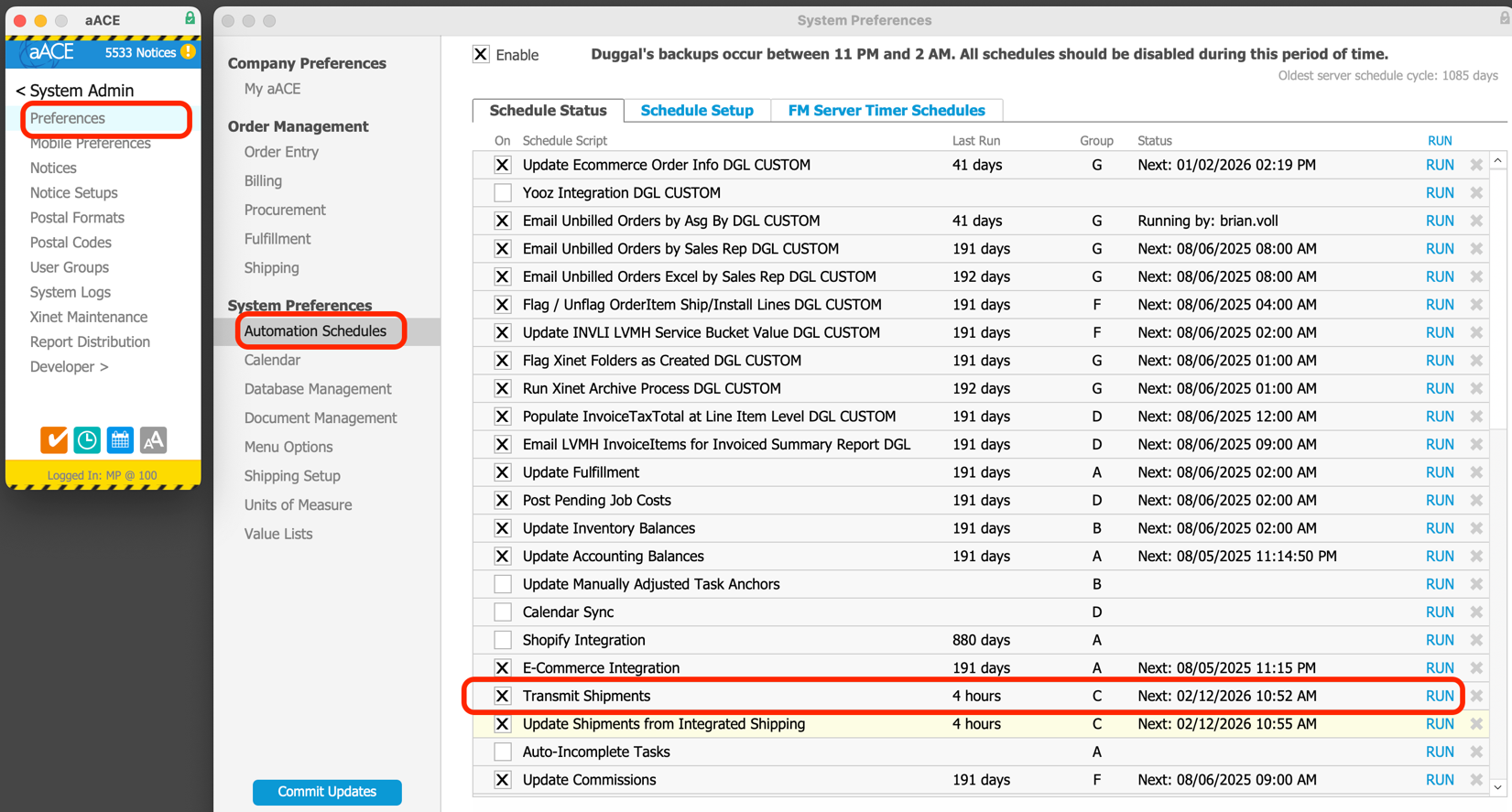

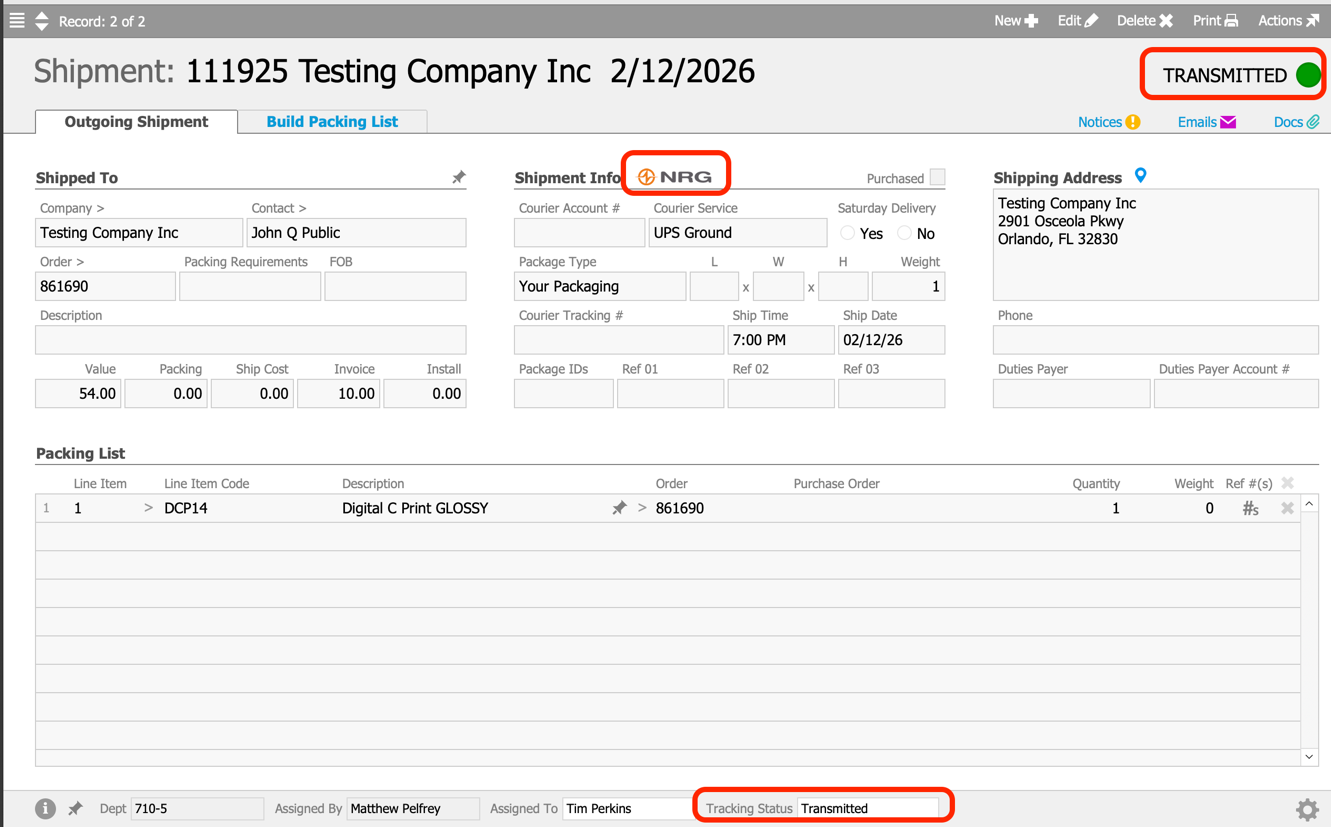
Once a Shipment is Transmitted, an NRG icon appears, the Shipment Status changes to TRANSMITTED, and the Tracking Status changes to "Transmitted".
The List View displays the Status and Tracking Status.

Get Rates
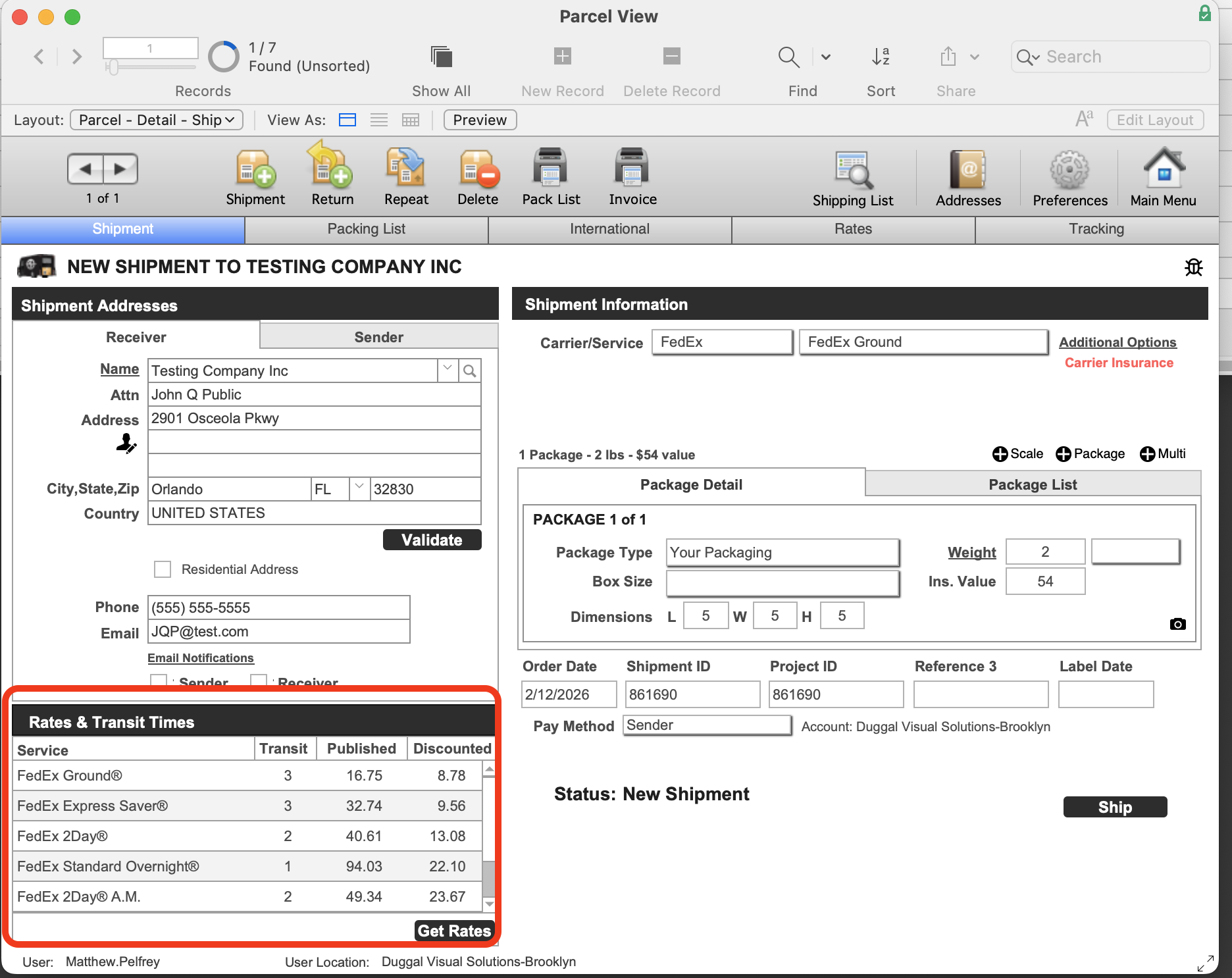
The Get Rates button will re-calculate rates for different courier options.
aACE Fields and Corresponding NRG Fields
The Sender information in NRG is connected to the Dept in the Ship From field of the aACE Shipment.
The options in this drop-down list are designated Type= Shipping in the Offices module> Departments tab. The Sender Name in NRG is the Team Member assigned as Traffic Manager for that Department.

Example: When the 43 West 24th St Shipping Dept is assigned, NRG Sender looks like this. The address is picked up from the Department's associated Office. The Phone Number is picked up from the Department's Traffic Manager's Phone field.

If the Receiver does not have a phone number, the Alt Phone Number from the Sending Office will populate the NRG Receiver Phone field.

Once the NRG shipment is Shipped, the aACE Shipment is marked Shipped, the Tracking Status is blanked, the Courier Tracking # and Ship Date are populated.
See the FedEx and UPS Integration article for more information on navigating the NRG window.