Elements of the Avatax Enabled Sales Tax Engine Customized for Duggal Visual Solutions
Library of Articles
You may review the below articles for General AvaTax information.
Understanding aACE+ AvaTax Integration
Information about the advantages you receive from the aACE+ AvaTax integration.
Information about setting up preferences, offices, line item codes, and tax profiles for your aACE+ AvaTax integration.
Information about implementing your aACE+ AvaTax integration.
Information on resolving issues with your AvaTax integration, such as discrepancies with tax amounts.
Filing Your Taxes Using AvaTax
Important details related to using Avalara services to file your state taxes.
You may review the below articles for articles for General Non-AvaTax enabled behavior of Tax Profiles.
Information about working with tax profiles, including default rates and exceptions to those rates (such as non-taxable items).
Steps and recommendations for setting up the most effective tax profiles for your company.
Linking Tax Profiles to Postal Codes
Steps for connecting postal codes to a tax profile.
Linking Tax Profiles to Company Records
Steps to link a tax profile to a company record.
Understanding Tax Rate Calculations
Information to clarify the logic for tax rate calculations.
How to update tax profiles when tax rates change.
Steps for creating a tax profile.
Flagging Companies as Tax Exempt
Steps for marking a customer company as exempt from all tax calculations.
Set up details specific to Duggal can be found in the below articles.
This article details settings necessary to enable Avatax and Tax Profile options in the Duggal System.
Shipping Preferences and Configuration
This article details settings necessary to enable the shipping module and the NRG software integration.
The Order Module
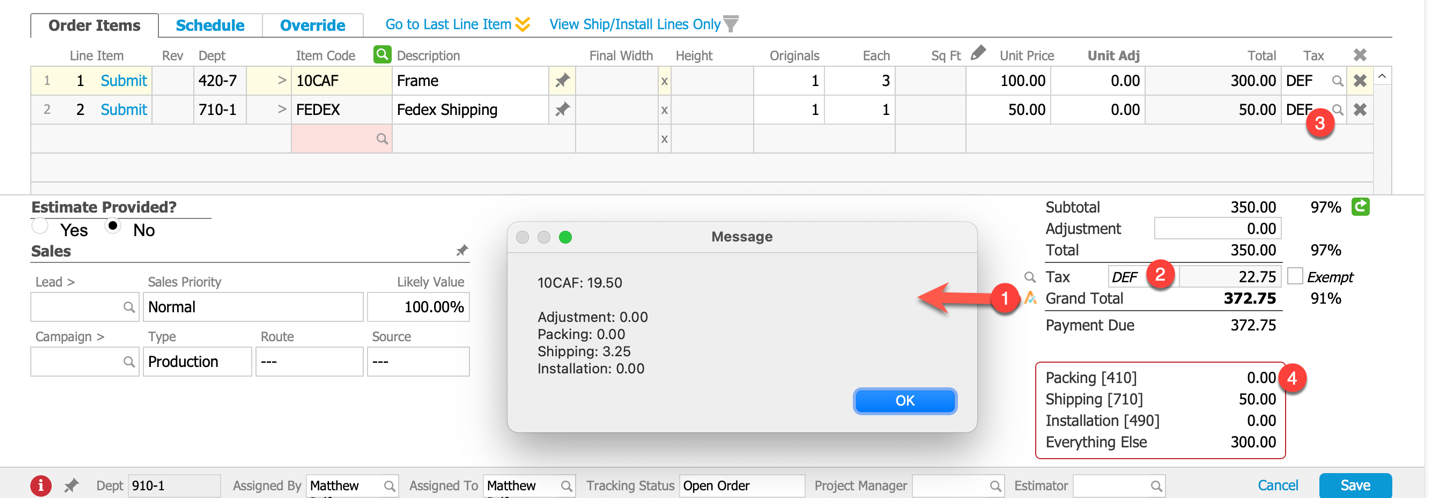
- The AvaTax logo appears on an Order after the initial Save. Clicking it will display a pop up message listing the Tax presently calculated.
- The Adjust field has its own line
- Packing, Shipping and Installation item codes are consolidated based on type (associated Dept Numbers: Packing=410, Shipping=710, Installation=490)
- The balance of ‘production’ Codes are listed individually.
- The Tax Profile can be assigned to the Overall Order. If the default Tax profile is set up with AvaTax enabled, AvaTax will automatically calculate Sales Tax. If a profile is selected that does NOT have AvaTax enabled, tax on the Order will be calculated using the Tax Profile’s rates.
- The Tax Profile can be assigned to individual Order Items. If the default Tax profile is set up with AvaTax enabled, AvaTax will automatically calculate Sales Tax. If a profile is selected that does NOT have AvaTax enabled, tax on the Order Item will be calculated using the Tax Profile’s rates.
- This is an informational box detailing the Sum Value assigned to the four different item types.
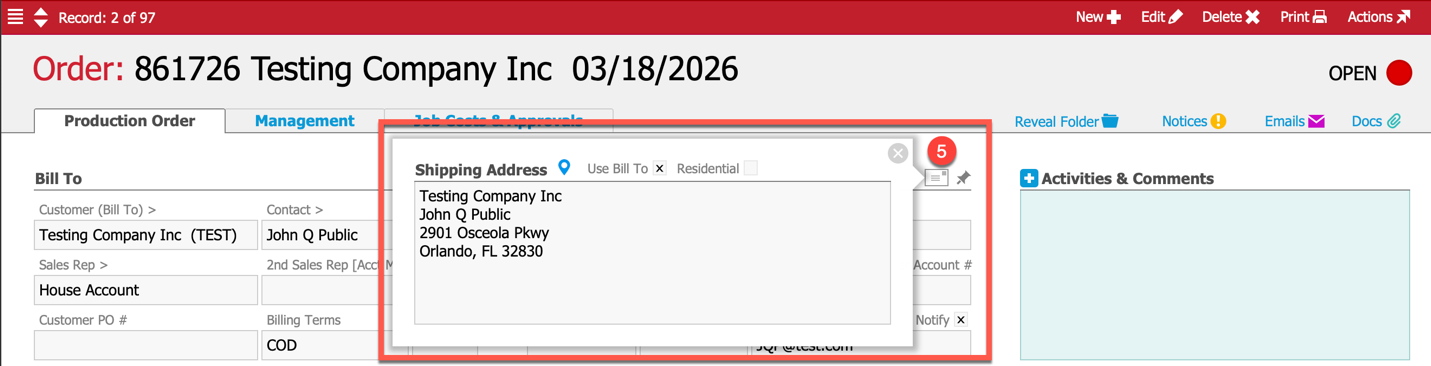
- The Order’s Ship To address is used as a default address for AvaTax to calculate from if no other method is active. Also of note, the Adjustment field is ALWAYS taxed based on this Address.
The Shipment Module
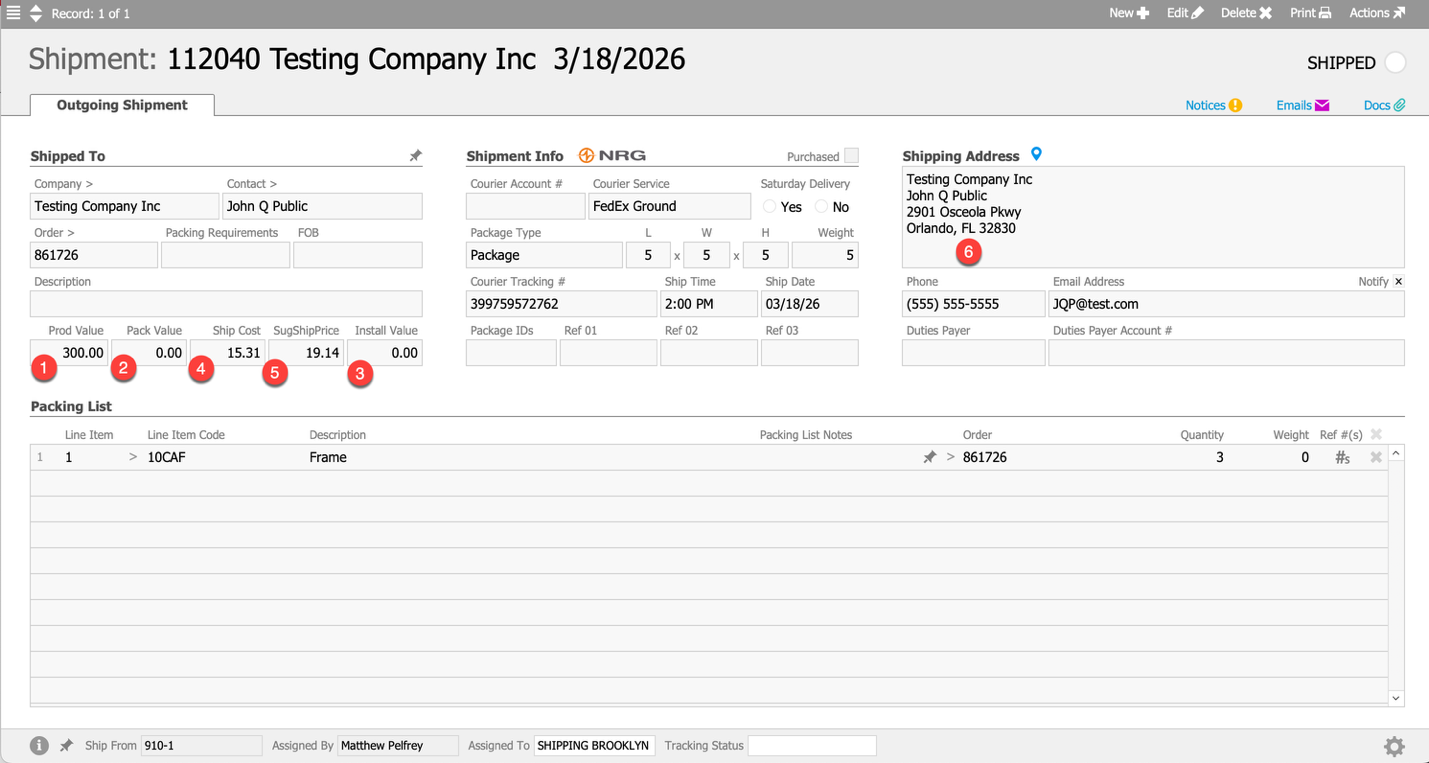
- Production Items Sum Value
- Packing Items Sum Value
- Installation Items Sum Value
Tax is applied to different categories of goods and services differently. For packing and Installation items in the Packing List, aACE consolidates the value of those items and submits the sum value to AvaTax. This sum value is displayed in the (2) Pack Value and (3) Install Value fields. The balance of “everything else” is summed into the (1) Prod Value field, though for these Items, tax is submitted individually.
- Shipping Cost – This is the Cost assigned to the Shipment’s Courier Service as set in the System Preferences>Shipping Setup window, or received from NRG for FedEx and UPS transmitted shipments. See Shipping Preferences and Configuration for more information on this set up.
- Suggested Shipping Price – This is the minimum value suggested to be charged to the customer based on the Shipping Cost and suggested mark-up set up in the System Preferences>Shipping Setup window. See Shipping Preferences and Configuration for more information on this set up.
- Shipping Address – AvaTax uses the Shipment’s Shipping address to determine the sales tax nexus and established rates to be used in its calculations.
The Invoice Module
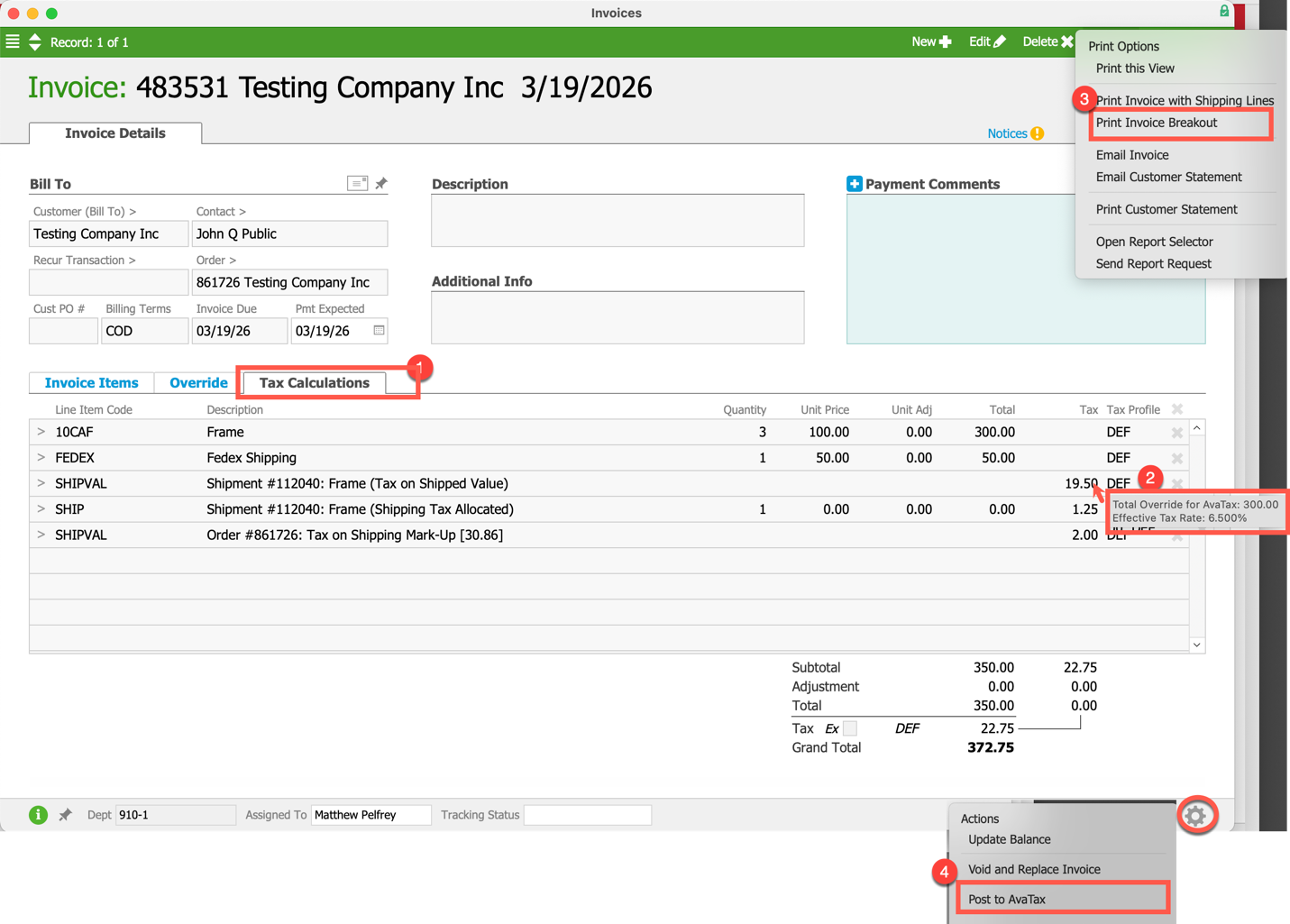
- Tax Calculations tab – tax calculations can be audited using the Tax Calculations tab.
- Tax Rates hover-over tool tip provides an “effective” tax rate and notes the Value being taxed.
- Print> Print Invoice Breakout is a great audit tool that displays all the necessary fields involved in the calculations.
- Admins Action> Post to AvaTax can be used to post to AvaTax in the rare event the auto-posting process doesn’t go through.